
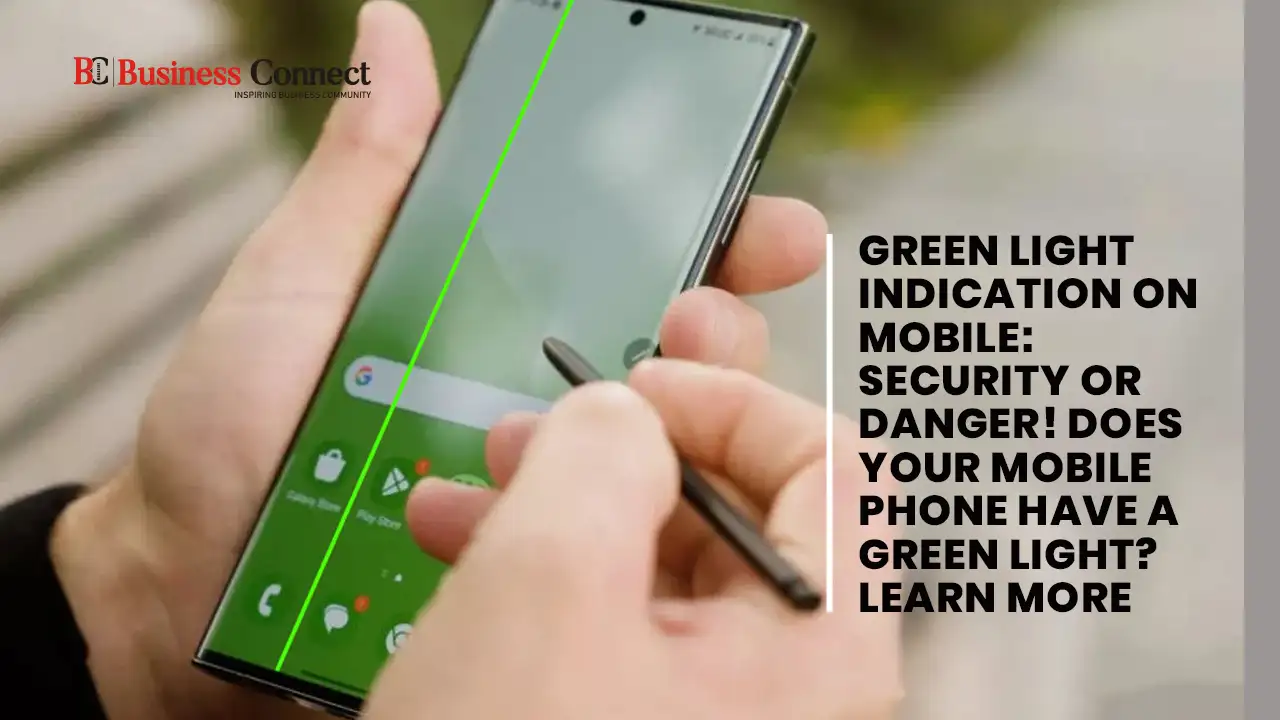
Mobile Green Light: What Does That Green Light Mean During Calls?
Have you ever noticed a small green light appearing on your phone while you’re on a call? Many users spot it but aren’t sure what it actually indicates.
Technology has undoubtedly made our lives easier and more connected. However, with convenience comes risk. If we are not careful about small details and settings on our devices, our personal information can be exposed without us even realizing it.
Security threats don’t just occur through suspicious links or online scams—they can also happen due to unnoticed changes in mobile phone settings or permissions. That’s why understanding the indicators on your phone is important.
If you are an Android user, staying alert is especially crucial. Android devices regularly receive updates designed to improve security and protect users from fraud. The green light you see is usually a privacy indicator that shows when your camera or microphone is being accessed—helping you stay informed and protected.
Companies continue to introduce such features to enhance transparency and safeguard user data. Still, it’s always wise to monitor app permissions and keep your phone updated to reduce security risks.
Why Is Your Phone Showing a Green Light? Here’s What It Really Means
Have you noticed a small green light appearing on your phone that wasn’t there before? If you recently bought a new smartphone and see a green dot glowing near the battery icon while you’re on a call, you might be wondering what it means.
Let’s clear up the confusion.
What Does the Green Light Indicate?
If you see a green dot in the upper corner of your screen—usually near the battery or signal icon—it simply means one of your phone’s sensitive features is currently in use.
Camera Active
The green light appears when your phone’s camera is being used. This happens when you:
-
Take photos
-
Record videos
-
Join a video call
Microphone Active
The green indicator also appears when your microphone is active. This includes when you:
-
Are on a voice call
-
Record audio
-
Use a voice assistant like Google Assistant
-
Unmute yourself during a call
This feature was introduced by Google and Apple as a privacy protection measure. It helps users instantly know when the camera or microphone is being accessed.
When Should You Be Concerned?
The green light becomes a warning sign if:
-
You are not using any app that requires the camera or microphone
-
No video call, voice call, or recording is active
-
Apps like WhatsApp, Instagram, Camera, or Recorder are closed
If the green indicator stays on without any clear reason, it could mean that an app is accessing your camera or microphone in the background.
What Should You Do If It Stays On?
If you suspect unusual activity:
-
Check recently used apps
-
Review app permissions in settings
-
Remove suspicious apps
-
Update your phone software
-
Restart your device
The green light is not a problem—it’s actually a helpful privacy feature. It becomes a concern only when it appears unexpectedly.
Could the Green Light Mean Unauthorized Access?
If the green indicator appears even when you’re not using any app, it could mean that an unauthorized or suspicious app is accessing your camera or microphone in the background.
While this doesn’t always indicate hacking, it is something you should take seriously.
What Should You Do in Such a Situation? (Safety Tips)
If you notice the green light turning on without a clear reason, don’t panic. Instead, follow these simple safety steps:
1. Identify the Active App
On many smartphones, tapping the green light will show which app is currently using the camera or microphone.
Check carefully to see if the app name makes sense.
2. Review App Permissions
Go to your phone settings and check camera and microphone permissions:
Settings > Privacy > Permissions Manager > Camera / Microphone
See which apps have access and whether that access is justified.
3. Disable Unnecessary Permissions
If you find that an app does not genuinely need camera or microphone access, change its permission to “Don’t Allow” immediately.
You can also choose options like:
-
Allow only while using the app
-
Ask every time
This gives you better control over your privacy.
4. Uninstall Suspicious Apps
If any app looks unfamiliar or suspicious:
-
Revoke its permissions
-
Uninstall it immediately
Removing risky apps reduces the chances of background spying or data misuse.
Final Advice
The green light is a built-in privacy feature designed to protect you. It’s not a threat—but it’s a warning system.
If the green indicator appears without a valid reason, take it as a signal to review your app permissions and protect your privacy immediately.