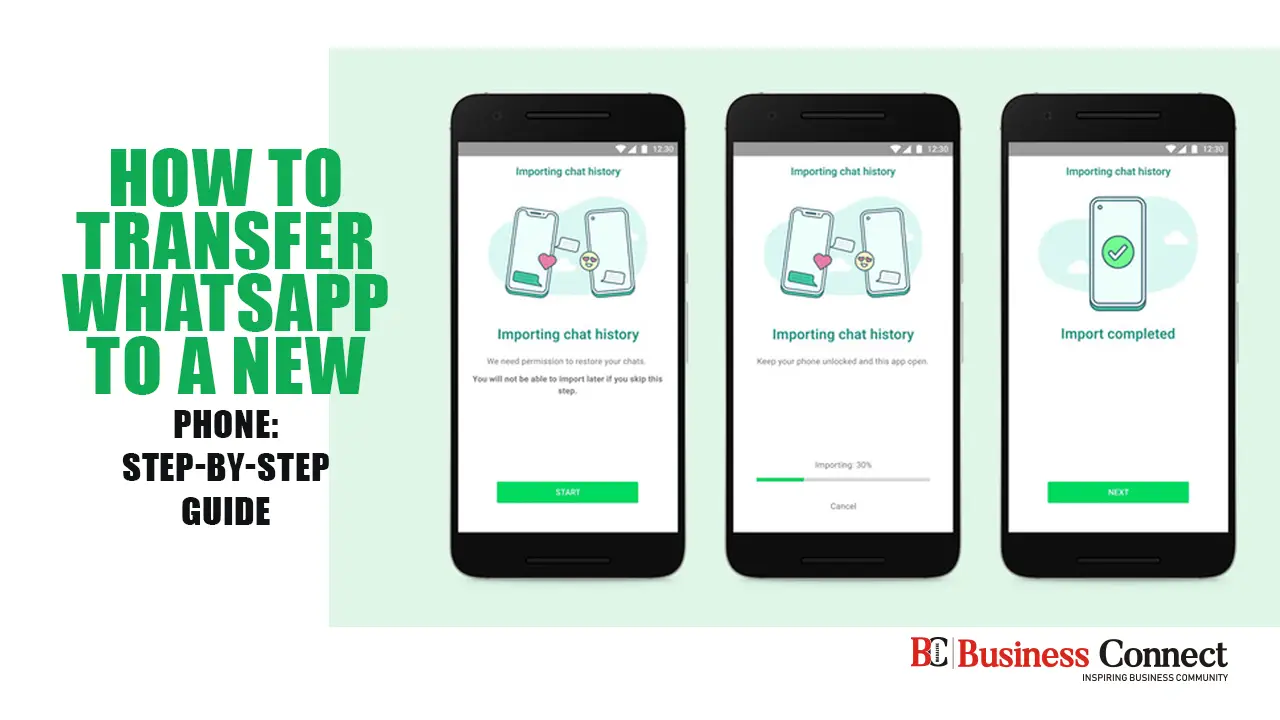
Transferring your WhatsApp account to a new phone is straightforward, but you’ll need both devices and an active internet connection. Follow these steps to move your chats safely:
How to Transfer WhatsApp to a New Phone
Install WhatsApp on Your New Phone
Download WhatsApp from your app store and tap Agree & Continue to accept the Privacy Policy and Terms of Service.Verify Your Phone Number
Enter your phone number and tap Next, then confirm by tapping Yes.Connect to Wi-Fi
If prompted, connect your new phone to a stable Wi-Fi network for a faster transfer.Scan the QR Code
Open WhatsApp on your old phone and use its camera to scan the QR code displayed on your new device.Important: Keep the app open until the transfer is fully completed.
Start the Transfer
Follow the Start Transfer prompts, then tap Done > OK.Authorize Connection
Tap Accept to allow your old phone to connect with the new one.Enter Two-Factor Authentication (if enabled)
If you’ve set up two-factor authentication, enter your PIN to proceed.Confirm Your Profile Information
Check that your profile details are correct and tap Next on the Transfer Complete screen. You will then be redirected to the Chats tab.Restore Your Chats
Your messages and media will now be restored from your old phone to your new device.
How to transfer whatsapp data to New Phone
WhatsApp’s Chat Transfer function allows you to move your entire media and chat history from one iPhone to another. The Chat Transfer function enables you to move your whole account information, including all of your private messages, images, videos, documents, and more, while restoring from a backup can retrieve all of your chat data. Peer-to-peer payment messages, call logs, and media obtained through WhatsApp Channels, however, cannot be transferred.
What you need
- The latest iOS version available on both of your devices.
- The latest version of WhatsApp from the App Store.
- Use the same phone number as your old phone on your new phone.
- Your new phone must not be registered on WhatsApp until you start the migration on your old phone.
- Your phones must be close to each other.
- Both of your phones should be connected to a power source.
- Both of your phones need to have WiFi and be connected to the internet.
- Both of your phones must have local network permissions.
Transfer your chat history
Old phone
- Open WhatsApp on your old phone.
- Tap your profile picture > Chats > Transfer Chats to iPhone > Start.
- Tap Allow to “WhatsApp would like access to the camera” if it’s not enabled. You’ll use the camera on your old phone to scan the QR code on your new phone.
New phone
- Open WhatsApp on your new phone.
- Tap Agree & continue, then verify your phone number.
- Tap Continue on Transfer chat history to iPhone and accept local network permissions.
- Use the WhatsApp camera on your old phone to scan the QR code on your new phone.
- When prompted, accept local network permissions.
- While your chat history is transferring, a percentage bar will track the progress. Keep your phones near each other, unlocked, and don’t leave WhatsApp. Messaging is paused during the chat history transfer. You can Cancel the process at any time.
- When you see Transfer completed, tap Next. You’ll see the Setup Profile page where you’ll enter your name. After that, you’ll see the Chats list with all of your existing chats.
What happens to my data?
- Transferred data doesn’t go to cloud storage as a result of the migration unless you create an iCloud backup.
- WhatsApp can’t see the data you transfer.
- Your old iPhone will still have your data on it unless you delete WhatsApp or reset your old phone.
- If you’re having issues with the chat transfer, try restarting both phones. Turn them off, wait 30 seconds, and turn them back on. Then, try the chat transfer again.
- Don’t delete your old phone’s data, reset your old phone, or uninstall WhatsApp on your old phone until you can confirm the data has successfully transferred to your new phone. In case your transfer fails, gets stuck, or you receive an error, your data will still be available on your old phone.
- It’s currently not possible to transfer chats on the WhatsApp Business app.